

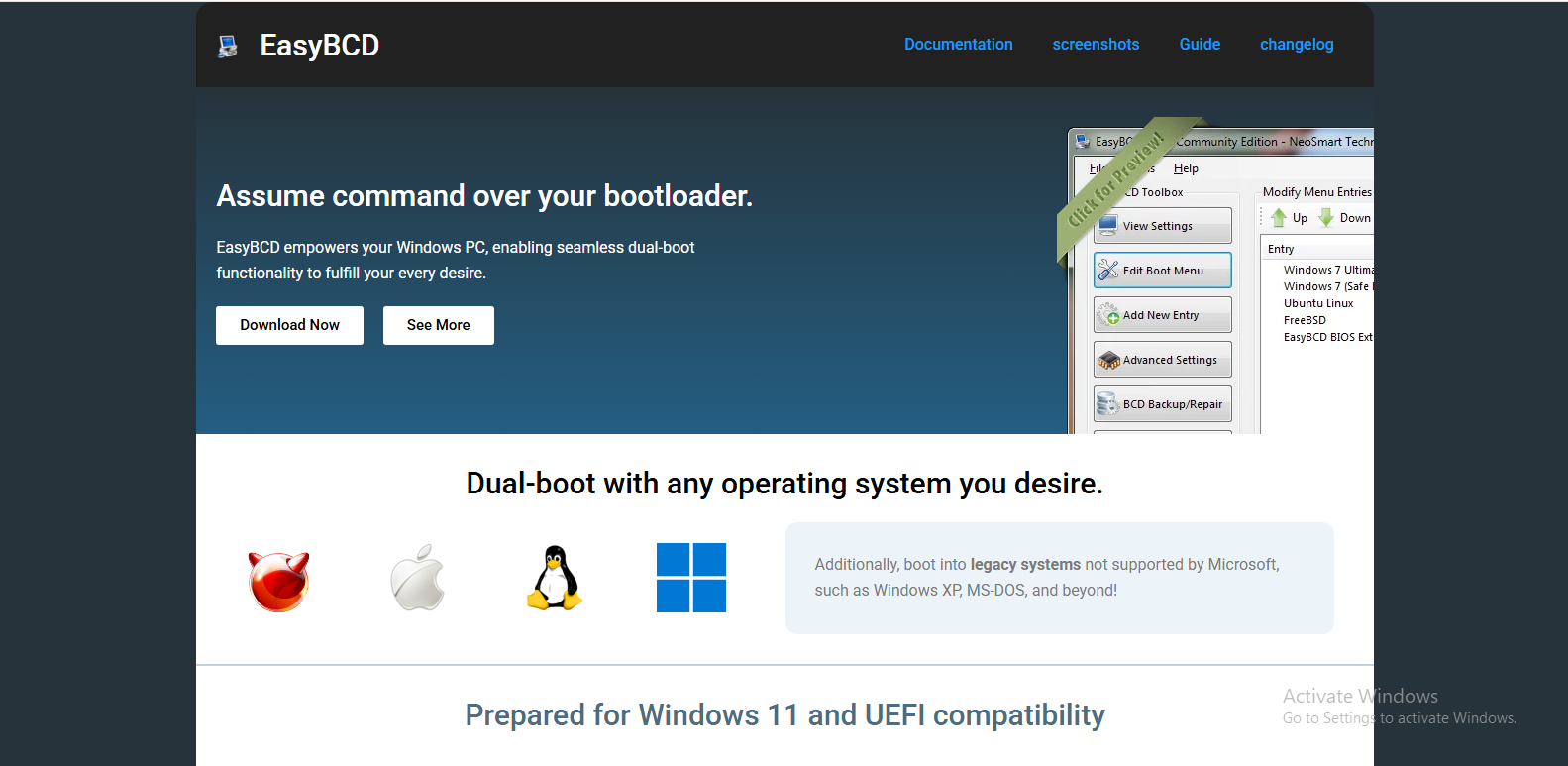
When dealing with multiple operating systems or a complex startup configuration, many users look for tools that can simplify and optimize the boot process. One of the most popular utilities in this space is EasyBCD, a powerful boot configuration manager for Windows. A common question that arises is whether EasyBCD can actually improve boot speed or if it is only useful for managing boot entries. To understand this properly, it’s important to look at how booting works and what role EasyBCD plays in that process.
Understanding What EasyBCD Does
EasyBCD is not a performance optimization tool in the traditional sense. Instead, it is a bootloader configuration utility designed to manage the Windows Boot Configuration Data (BCD). This system controls how your computer starts and which operating system loads when you power on your device.
With EasyBCD, users can add, remove, or edit boot entries for multiple operating systems such as Windows, Linux, or even older legacy systems. It also allows customization of boot menus, timeout settings, and advanced boot parameters. Essentially, it acts as a user-friendly interface for controlling the boot loader rather than directly modifying system performance.
Because of this, EasyBCD’s primary purpose is organization and management, not speed enhancement. However, its configuration choices can indirectly influence how fast your system reaches the desktop.
The Boot Process and Where Delays Occur
To understand whether EasyBCD can improve boot speed, it is important to break down the boot process itself. When a computer starts, it goes through several stages including firmware initialization (BIOS or UEFI), bootloader execution, operating system loading, and startup services.
Delays in boot time often occur during the bootloader stage or during system initialization after the OS begins loading. If multiple operating systems are listed in the boot menu or if the timeout is set too high, users may experience unnecessary waiting during startup. Additionally, poorly configured boot entries or redundant operating system paths can also slow down the selection process.
This is where EasyBCD becomes relevant, as it allows users to fine-tune these settings.
How EasyBCD Can Indirectly Improve Boot Speed
While EasyBCD does not accelerate hardware performance or reduce OS loading time directly, it can help optimize boot behavior in several indirect ways.
One of the most noticeable improvements comes from reducing boot menu timeout duration. By default, some systems wait several seconds before automatically booting into the default operating system. With EasyBCD, this delay can be shortened or completely removed, allowing the system to proceed immediately without waiting.
Another way EasyBCD contributes is by cleaning up unnecessary boot entries. Over time, systems that have had multiple operating systems installed may accumulate redundant or broken entries in the boot menu. These can slow down the decision process during startup or create confusion in the bootloader. Removing these entries simplifies the boot process and reduces potential delays.
EasyBCD can also help set a default operating system more effectively. When a clear default is defined, the system does not waste time processing multiple boot choices and instead proceeds directly to the selected OS.
In dual-boot or multi-boot setups, EasyBCD can streamline the boot sequence by organizing entries in a cleaner structure. This reduces complexity and ensures the bootloader does not spend extra time parsing unnecessary configurations.
Limitations of EasyBCD in Boot Performance
Despite its usefulness, EasyBCD has clear limitations when it comes to improving actual boot speed. It does not affect hardware-level operations such as SSD or HDD read speeds, CPU initialization, or memory loading. If your system is slow due to an aging hard drive, insufficient RAM, or background startup programs, EasyBCD will not solve those issues.
Additionally, EasyBCD does not optimize Windows startup services or drivers. These are major contributors to slow boot times in modern systems. Issues like heavy antivirus software, unnecessary startup applications, or outdated drivers will still need to be addressed separately through system optimization tools or manual configuration.
Another important point is that improper use of EasyBCD can sometimes lead to boot issues. Incorrect configuration of boot entries or system paths may cause startup failures or require recovery tools to fix. Therefore, while it is a helpful utility, it must be used carefully.
When EasyBCD Becomes Useful for Faster Boot Experience
EasyBCD becomes most beneficial in systems where boot delay is caused by configuration rather than hardware. For example, if a user frequently sees a boot menu with multiple unused operating systems, or if the system pauses unnecessarily before loading Windows, EasyBCD can significantly streamline the process.
It is especially useful for users who have experimented with Linux installations alongside Windows and now want a cleaner boot experience. In such cases, removing unnecessary boot entries and reducing timeout settings can make startup feel noticeably faster, even if the actual OS loading time remains unchanged.
Final Thoughts
EasyBCD is not a tool designed to increase raw boot performance, but it can contribute to a faster and smoother startup experience through better boot management. By reducing boot menu delays, cleaning up redundant entries, and organizing operating system options, it helps eliminate unnecessary waiting time during startup.
However, users should not expect dramatic speed improvements from EasyBCD alone. Real boot speed gains usually come from hardware upgrades, reducing startup programs, or optimizing system performance settings within the operating system itself.
In conclusion, EasyBCD improves boot efficiency rather than boot speed. It refines how the system chooses and loads operating systems, making the startup process more streamlined and user-friendly.
